Split Shipments for WooCommerce
Split Shipments for WooCommerce allows stores to break orders into multiple fulfillment packages—either automatically at checkout based on logistics rules, or manually by fulfillment staff.
Quickstart
-
Upload and activate the plugin via Plugins > Add New > Upload Plugin.
-
Navigate to WooCommerce > Settings > Split Shipments.
-
Choose your default Backordered Items handling mode.
-
Configure how Shipping Classes should be treated for single-unit, single-line, or grouped fulfillment.
-
Configure how Store Categories should be treated for grouped fulfillment.
-
Click Save changes.
When does automated splitting trigger? Automation executes the moment an order transitions to Processing (typically immediately after credit card payment is confirmed at checkout). For offline payment methods like Direct Bank Transfer or Cash on Delivery, automated rules run once payment is verified and the order status changes to Processing.
System Requirements
To ensure optimal performance and full database transaction safety, your server must meet the following minimum requirements:
- PHP: 8.2 or higher
- WordPress: 6.4 or higher
- WooCommerce: 8.2 or higher
- High-Performance Order Storage (HPOS): Fully compatible with both HPOS (Custom Order Tables) and legacy post storage.
- Checkout: Fully compatible with both Cart/Checkout Blocks and classic shortcode checkout.
Plugin Compatibility
Split Shipments uses native WooCommerce CRUD APIs and hooks, ensuring compatibility with standard ecosystem tools:
-
Sequential Order Numbers: Compatible with WooCommerce Sequential Order Numbers Pro and similar tools. Child shipments receive standard sequential identifiers upon creation.
-
Shipment Tracking: Fully compatible with WooCommerce Shipment Tracking. Carrier tracking numbers can be assigned to Package 1 and Package 2 independently.
-
PDF Invoices & Packing Slips: Fully compatible with WooCommerce PDF Invoices & Packing Slips. Packing slips generated for a child order display only the items allocated to that package.
-
Payment Gateways: Universal compatibility (Stripe, WooPayments, PayPal, Klarna, Authorize.net, BACS, COD) because no secondary charges or token modifications take place.
Physical Logistics & Shipping Classes
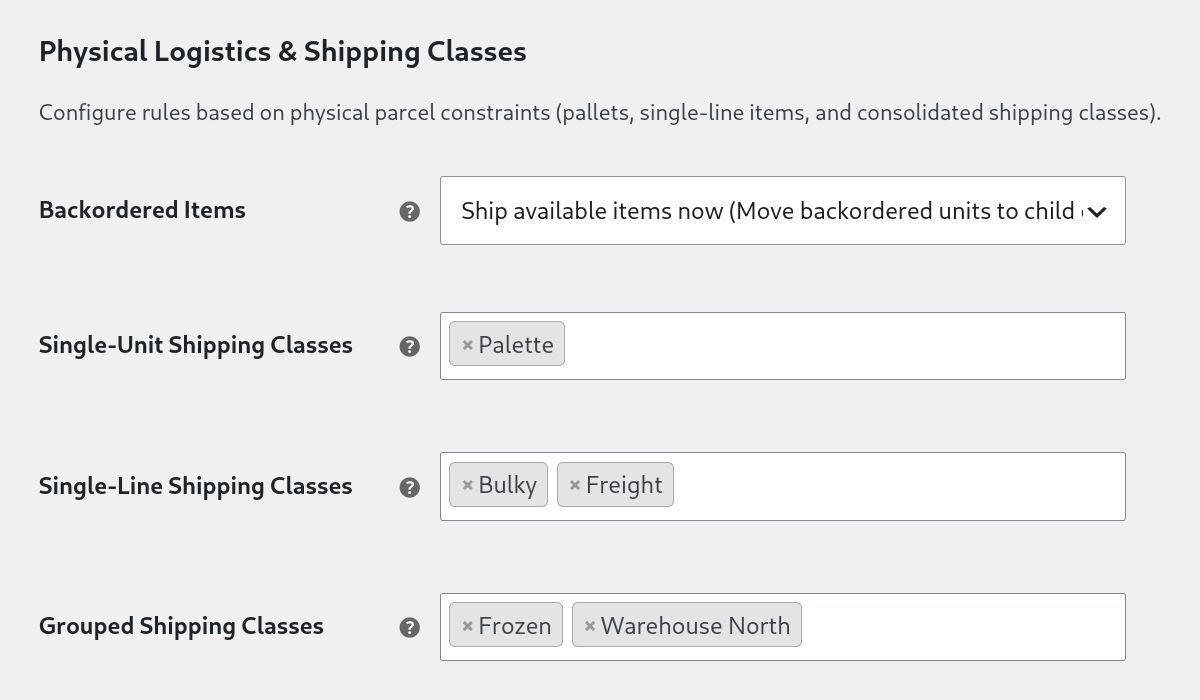
Under Backordered Items, you can choose how to handle items that are out of stock:
-
Disabled: All items remain on the parent order, regardless of stock availability.
-
Ship available items now: The parent order ships immediately with available stock. Backordered items are moved to a child order on-hold for later fulfillment.
-
Keep product lines together: If any item in a product line is out of stock, the entire line is moved to a child order on-hold.
Inventory Setup Tip: For backorder splitting to take effect, ensure your products have Manage stock enabled with Allow backorders set to Allow (or the product's Stock Status set to On backorder). Split Shipments uses these real-time inventory counts at the moment of checkout to divide in-stock vs. backordered quantities.
Automatic On-Hold Safeguard: If an automated split leaves only backordered items on the parent order, Split Shipments automatically transitions the parent order to On-Hold. This prevents warehouse staff from mistakenly packing a parent order that currently contains zero in-stock units.
Shipments can also be split automatically based on product shipping classes:
-
Single-Unit Shipping Classes: If a product is assigned to a single-unit shipping class, it will be split into one or more child orders, each containing a single unit of that product. This is useful for palletized freight, heavy equipment, or any item that requires separate handling.
-
Single-Line Shipping Classes: If a product is assigned to a single-line shipping class, the entire line item will be moved to a child order. This is useful for lines that can be fulfilled together but must be shipped separately from other lines.
-
Grouped Shipping Classes: If a product is assigned to a grouped shipping class, all items in that class will be moved to a child order. This is useful for products that must be shipped together, such as kits or bundles, or require special shipment handling such as refrigeration or hazardous materials.
Rule Precedence: If a product qualifies for multiple rules (for example, it has a Single-Unit shipping class and also belongs to a Grouped Category), rules are evaluated in order of physical parcel priority: Single-Unit → Single-Line → Grouped Classes & Categories → Standard Parcel.
Note: To prevent conflicting fulfillment logic, shipping classes selected in one tier are automatically disabled in the other dropdowns.
Category Grouping
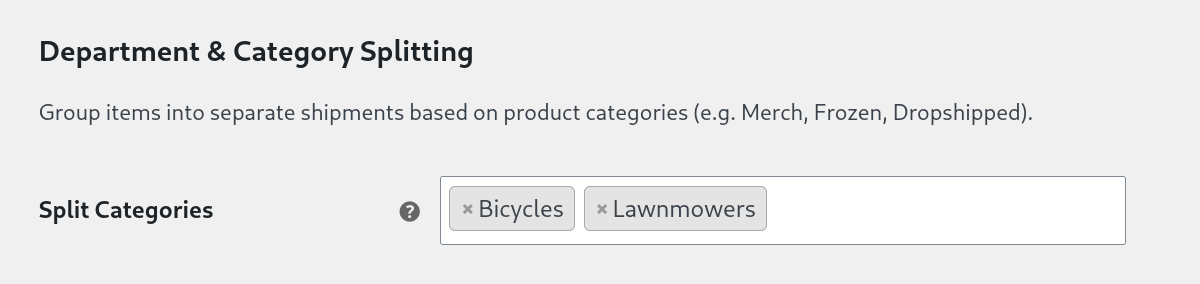
If a product is assigned to a grouped category, all items in that category will be moved to a child order. Like grouped shipping classes, this is useful for products that must be shipped together, but does not require individual products to be assigned to a shipping class.
Variation Support: Category grouping works seamlessly with variable products. Variations automatically inherit the categories of their parent product.
Other Settings
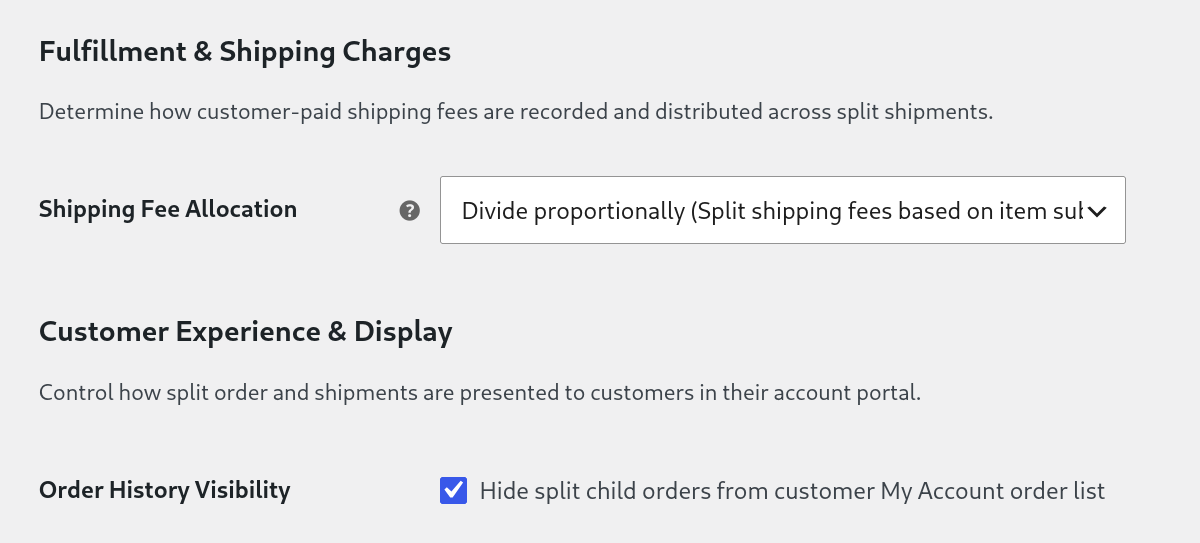
Shipping Fee Allocation
Three options are available to control how shipping fees are distributed:
-
Customer pays once: The parent order retains the original shipping fee. Child orders inherit the same shipping method with a $0 fee.
-
Divide proportionally: The shipping fee is divided across the parent and child orders based on the total cost of each shipment.
-
Main order only: The parent order retains the original shipping fee. Child orders receive no shipping lines.
Order History Visibility
Controls how split packages are displayed in the customer's My Account > Orders list:
-
Enabled (Default Recommended): Customers see only their primary parent order in their account history list, keeping the list uncluttered. When they click to view the order details, the full multi-package breakdown table is displayed.
-
Disabled: Every child shipment appears as an individual order row in their order history, labeled with a Part of #... badge linking back to the parent purchase.
Manual Order Splitting
-
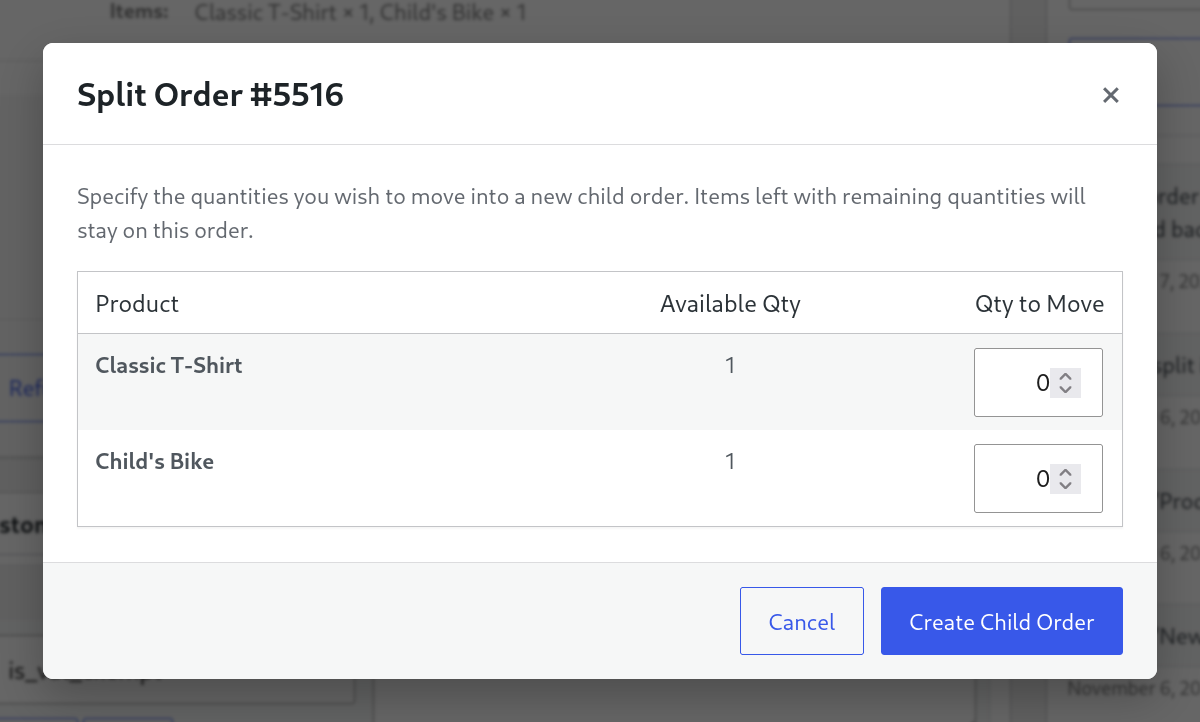
Open any eligible order in WooCommerce > Orders.
-
Scroll to the Order Items box and click the Split Order button.
-
Enter the quantities of each line item you want to move into a child shipment.
-
Click Create Child Order.
Reuniting Orders
If an order was split by mistake, fulfillment staff can merge packages back together:
-
Open the specific Child Order you wish to return to the parent.
-
Scroll to the bottom of the items table and click Reunite Order.
-
Confirm the action when prompted.
What happens during a reunite?
-
Granular Control: If a parent order has three child shipments, reuniting Child #2 merges only Child #2 back into the parent. Child #1 and Child #3 remain active and untouched.
-
Line Item Restoration: Quantities, subtotals, taxes, and split shipping amounts are merged back into the parent order lines.
-
Stock Reconciliation: If stock was already reduced on the child shipment, the extension automatically reconciles inventory levels so your stock counts do not drift.
-
Child Record Cleanup: Once all items are safely restored to the parent order, the child order is permanently deleted to prevent orphan records.
Order Management & Tracking
Split Shipments provides dedicated tools to help warehouse staff and customers track multi-package orders seamlessly.
Admin Order List & Filtering
In WooCommerce > Orders, a dedicated Split Info column highlights order relationships at a glance:
- Split into #... (Blue Badge): Highlights parent orders and provides direct links to each child shipment.
- Child of #... (Amber Badge): Highlights child packages with a one-click link back to the primary parent order.
- Filter by Split Type: Use the dropdown filter at the top of the orders list to filter the view by Parent Orders Only or Child Orders Only during high-volume packing runs.
Customer Notifications (Split Shipment Email)
When an order is divided into separate packages, an automated Order Split notification email is sent to the customer detailing:
- Which items are in Package 1 (Main Shipment).
- Which items are in subsequent packages, including clear badges if a package is Backordered / Awaiting Stock.
- A direct link to track all packages in their account portal.
You can customize the email subject, heading, and template under WooCommerce > Settings > Emails > Order Split.
To manually resend the notification at any time:
- Open the parent order in WooCommerce > Orders.
- Locate the Order Actions box in the right sidebar.
- Select Resend split shipment email to customer and click the update arrow.
Customer Communication Sequence: The customer receives their standard WooCommerce Order Processing receipt for their full order at checkout. Once automation splits the order, the customer receives the dedicated Order Split notification explaining the package division. Customers are never sent duplicate sales receipts.
Email Queue & WP-Cron: To ensure instantaneous checkout performance without slowing down the customer's payment screen, automated split notifications are dispatched asynchronously via WooCommerce Action Scheduler with a brief 5-second buffer. Ensure your site's standard WP-Cron or system cron is functioning normally.
Customer Account & Order Details View
- Parent Order Breakdown: When viewing their order details, customers see a Multi-Package Shipment table listing each package number, individual package items, and their respective fulfillment statuses.
- Child Package Notice: If a customer views a child order directly, a banner clarifies that the package is part of their primary order and provides a link back to the main invoice.
Independent Shipping Destinations: Because each package is an independent order record, warehouse staff can edit the shipping address on Child Order #2 (e.g. shipping direct to a customer's job site or alternate address) without altering the delivery address on Package #1.
Carrier Tracking Numbers & Multi-Box Shipping
Because each child shipment is a native WooCommerce order:
-
Dedicated Tracking Per Package: You can attach unique carrier tracking numbers (via WooCommerce Shipment Tracking, ShipStation, or carrier plugins) directly to Package 1 and Package 2 independently.
-
Customer Notifications: When each shipment is marked Completed, WooCommerce sends its standard completion email containing the carrier tracking link specific to the items in that box.
Invoices & Warehouse Packing Slips
Because line items, taxes, and costs are divided directly across orders, third-party document plugins (such as WooCommerce PDF Invoices & Packing Slips or WooCommerce Print Invoices / Packing Lists) treat each shipment independently:
-
Individual Packing Slips: Printing a packing slip for Child Order #2 includes only the items in that physical package. Warehouse pickers and packers will not see items from other boxes on that slip.
-
Separated Invoices: Because charges and discounts are split, an invoice generated for the parent order reflects only the items and totals in Package 1. An invoice generated for the child order reflects the items and totals in Package 2. Combined, the two invoices represent the customer's total purchase to the penny.
Automatic Audit Trail & Order Notes
Every manual and automated split or reunite event logs an entry directly into the WooCommerce Order Notes timeline:
-
Split Notes: Both the parent order and the new child shipment log an order note recording which items were moved, the linked order numbers, and whether the split was performed by System Automation or a specific logged-in administrator.
-
Reunite Notes: When a shipment is merged back, the parent order notes exactly which child ID was absorbed and who authorized the merge.
Financials, Taxes & Bookkeeping
When you divide an order, WooCommerce creates a separate order for each new package. Here is how your numbers, taxes, and customer payments balance out across those shipments.
1. How the Money Balances
When items are divided across separate shipments, Split Shipments calculates the exact totals for the new child package first, and assigns the remaining balance directly to the main order. Consequently, the sum of all packages always matches the original customer receipt to the penny.
Example: A $135.53 order split across two packages will balance out to something like $84.76 on Package 1 and $50.77 on Package 2 — never $135.52 or $135.54.
Multi-Currency Support: Child shipments inherit the parent order's currency code. Line subtotals and taxes remain locked to the checkout exchange rate, preventing currency conversion discrepancies.
2. How Sales Tax & VAT are Handled
Sales tax calculations are preserved line-by-line:
-
Tax Classes Remain Intact: If one item has standard VAT (20%) and another is zero-rated (0%), each item retains its correct tax rate when moved to a new shipment.
-
Proportional Tax Amounts: The child shipment receives its exact share of sales tax based on the items inside it, and the remaining tax stays on the main order.
-
Both Orders Recalculate: WooCommerce's built-in tax routines run on both orders immediately to ensure clean line-item tax records.
3. Choosing a Shipping Fee Strategy
When a customer pays one flat shipping fee at checkout (e.g. $10), how should that fee be recorded once their items are in two separate boxes? You can choose one of three approaches under WooCommerce > Settings > Split Shipments:
Customer Pays Once (Zero-Cost Clone) — Recommended
The main order keeps 100% of the customer's paid shipping charge. The new split shipment gets an identical copy of the shipping method, but with the cost set to $0.00.
Best for: Stores using shipping tools like ShipStation, Shippo, or carrier plugins that require a shipping method on every order to print a label, but where you don't want to falsely double your shipping revenue in bookkeeping.
Divide Proportionally (Prorate)
The customer's shipping fee (and any tax on shipping) is mathematically divided between the packages based on the value of the items in each box.
Best for: Stores that track profitability, packaging costs, and margins for each individual package in an external accounting system.
Main Order Only
The original shipping fee stays on the main order. The child shipment is created with no shipping line at all.
Best for: Simple store setups where warehouse staff manually select shipping methods at the packing bench, or when split packages ship at store expense.
4. Discounts & Coupons
If the customer used a discount code (such as a fixed $15 off cart coupon), the discount follows the items:
-
Discounts are divided proportionally based on the value of the items moving to the new shipment versus the items staying behind.
-
The discount amount and its tax credit are applied to both orders so that each package reflects its true net total.
5. Credit Cards & Payment Gateways
-
Customers are never charged twice: Splitting an order is strictly an administrative action. It does not trigger a second transaction or authorization on the customer's card or PayPal account.
-
Payment method is referenced: The split shipment notes the payment method used (e.g. Credit Card via Stripe) for fulfillment context, but the gateway transaction ID remains exclusively on the parent order to ensure refunds are only ever processed against the original charge.
-
Handling Refunds: All refunds must be processed through the primary parent order, where the original payment gateway transaction and authorization reside. Once any refund is processed on the parent order, the order and its linked shipments are permanently locked from further splitting or reuniting to protect your financial and accounting audit trail.
6. Working with Shipping & Accounting Tools
-
ShipStation, ShipEngine, and Warehouse Systems: Child shipments appear as regular orders in WooCommerce. Your warehouse software will import them as separate orders ready for picking, packing, and labeling.
-
QuickBooks, Xero, and Bookkeeping Sync: All three shipping strategies guarantee that total sales revenue and taxes balance across your ledgers without duplicate income. If your accounting integration syncs each order as a separate invoice, choose Prorate if you want shipping revenue and taxes divided across both invoices, or Zero-Cost Clone if you prefer the entire shipping fee recorded on the primary invoice.
Marketing & Campaign Attribution: Split Shipments natively copies WooCommerce Order Attribution data (UTM campaign, source, medium, and referral channels) from the parent order to all child shipments. Your analytics, conversion tracking, and multi-touch reporting remain unbroken across all packages.
Eligibility Guardrails
To prevent accounting discrepancies, stock desynchronization, and gateway errors, actions are restricted by order status:
| Order Status | Can Split? | Can Reunite? | Operational Notes |
|---|---|---|---|
| Processing | Allowed | Allowed | Standard active fulfillment state. |
| On Hold | Allowed | Allowed | Used for backordered packages awaiting stock. |
| Completed | Blocked | Blocked | Fulfillment is finalized. Packages cannot be reverted. |
| Refunded / Cancelled | Blocked | Blocked | Orders with processed refunds are locked to protect audit trails. |
Uninstallation & Data Retention
Split Shipments protects historical sales records and financial audit trails:
-
Orders are Permanent: Deactivating or deleting the plugin never deletes orders, line items, or customer purchase history.
-
Order Relationships Remain Intact: All parent and child order records remain standard WooCommerce orders in your database.
-
Clean Configuration Removal: When deleted via Plugins > Delete, the plugin cleanly removes only its own plugin configuration settings from the WordPress options table.
Parent Order Cancellation & Independent Statuses
Parent and child orders maintain independent fulfillment statuses:
-
Independent Lifecycle: Marking Package 1 as Completed does not automatically mark Package 2 as Completed. Each package ships and completes independently.
-
Cancellation Safeguard: If a parent order is marked Cancelled or Refunded while linked child shipments are still active (Processing or On Hold), Split Shipments displays an administrative warning banner on the order screen reminding staff that linked child packages remain active and must be managed individually.
Frequently Asked Questions
Does this work with PayPal, Klarna, Apple Pay, or Buy Now Pay Later (BNPL)?
Yes, universally. Because Split Shipments never initiates secondary payment gateway captures or modifies original transaction tokens, it is compatible with all WooCommerce payment gateways (including Stripe, PayPal, WooPayments, Klarna, Authorize.net, and offline BACS/COD methods).
Why didn't an eligible order split automatically at checkout?
Automated splitting executes only when an order status changes to Processing and meets your rule criteria. If an order did not split, check the following:
- Status transition: Orders that jump directly from checkout to Completed (such as orders consisting purely of virtual/downloadable items) bypass the Processing trigger.
- Stock settings: For backorder splitting, products must have Manage stock checked and Allow backorders set to Allow. If stock is not tracked, WooCommerce does not record backordered quantities at checkout.
- Single bucket evaluation: If all items in the cart resolve to the same fulfillment tier (for example, all items are standard in-stock parcel items), no division is necessary and the order remains a single parent order.
- Total quantity: The order must contain more than one total unit or line item.
Why is the "Split Order" button missing on an order?
The split button is hidden automatically if the order fails validation:
- Already a Child: Child packages cannot be divided into sub-orders.
- Single-item orders: The order has 1 or fewer physical units (nothing to divide).
- Partial Refunds: If a refund has already been recorded, splitting is locked.
- Permissions: The logged-in user lacks
edit_shop_ordercapability.
Does splitting an order charge the customer's card again?
No. Payment capture occurs exclusively on the original parent order. Child orders note the payment method used for fulfillment context, but the transaction ID remains on the parent order to ensure refunds are only ever processed against the primary charge.
How is inventory tracked across split packages?
If the parent order already reduced stock (upon entering Processing), allocated child items inherit
the _reduced_stock flag. This prevents WooCommerce from double-deducting stock when child orders are
completed.
Is this compatible with High-Performance Order Storage (HPOS)?
Yes. The extension is natively architected for WooCommerce custom order tables (HPOS) as well as legacy post-based storage.
Can I split an order into more than two shipments?
Yes. You can split a parent order multiple times. For example, you can move 1 item to Child Order #101 today, and another item to Child Order #102 next week. All child shipments remain permanently linked to the primary parent order.
Can child orders be split further?
No. To prevent convoluted order hierarchies and broken financial reconciliation, child shipments cannot be divided into sub-orders. If you need to reallocate items, reunite the child order back into the parent first, then perform the new split.
Can I move 100% of items from the parent order to a child order?
No. The parent order represents the primary financial invoice and must retain at least one physical item (or remaining quantity). If you need to reassign an entire order, adjust the original order directly rather than splitting it.
Why did my parent order switch to "On-Hold" after an automated split?
This is a built-in fulfillment safeguard. If an automated split moves all in-stock items into child shipments, leaving only out-of-stock or backordered items on the parent order, the plugin places the parent order On-Hold.
This prevents warehouse staff or automated print-station software from accidentally picking a parent order that currently has zero physical stock available to pack.
Customizing Templates (Theme Overrides)
All customer-facing emails, notices, and breakdown tables can be customized using standard WooCommerce template override hierarchy.
To override a template, copy the file from:
wp-content/plugins/split-shipments/templates/
Into your active child theme directory:
wp-content/themes/your-active-theme/split-shipments/
| Template File | Purpose / Placement |
|---|---|
emails/customer-order-split.php | HTML notification email sent to the customer detailing package breakdowns |
emails/plain/customer-order-split.php | Plain-text version of the split shipment email |
frontend/child-orders-table.php | Multi-package shipment breakdown table shown on the parent order view |
frontend/parent-order-banner.php | Blue alert banner at the top of the parent order details page |
frontend/child-order-banner.php | Yellow notice at the top of a child order clarifying its parent link |
Developer Reference & Hooks
Split Shipments for WooCommerce provides dedicated action and filter hooks so developers can integrate with warehouse management systems (WMS), 3PL APIs, or custom ERP workflows.
Splitting Lifecycle
Action
split_shipments_before_split
split_shipments_before_split
Fires inside the database transaction before line items, shipping, and totals are divided.
- WC_Order $parent_order — The source order being split
- WC_Order $child_order — The freshly instantiated child order
- array<int, int> $items_to_split — Map of
[item_id => quantity]
Action
split_shipments_after_split
split_shipments_after_split
Fires immediately after the split transaction is committed and orders are saved. Ideal for triggering warehouse notifications or dispatching webhooks to a 3PL.
- WC_Order $child_order — The finalized child shipment
- WC_Order $parent_order — The updated parent order
Reunite Lifecycle
Action
split_shipments_before_reunite
split_shipments_before_reunite
Fires inside the transaction before a child shipment is merged back into its parent order.
- WC_Order $parent_order — The parent receiving items
- WC_Order $child_order — The child order about to be merged and deleted
Action
split_shipments_after_reunite
split_shipments_after_reunite
Fires after the child order has been completely reunited and deleted from the database.
- WC_Order $parent_order — The restored parent order
- int $child_id — ID of the deleted child shipment
Notifications & Events
Action
split_shipments_order_split_notification
split_shipments_order_split_notification
Fires when automated split notification emails are dispatched via Action Scheduler.
- WC_Order $parent_order — The primary parent order
- array<WC_Order> $child_orders — Array of newly generated child shipments
Automation & Strategy
Filter
split_shipments_should_automate_split
split_shipments_should_automate_split
Return false to conditionally halt automated splitting (e.g., for B2B wholesale roles, specific shipping countries, or custom checkout gateways).
- bool $should_split — Default
true - WC_Order $order — The order entering processing
Filter
split_shipments_split_plan
split_shipments_split_plan
Inspect or mutate the planned buckets (parent item list vs child buckets) before automation splits the order.
- array $plan — Calculated split plan
['parent_bucket' => ..., 'child_buckets' => ...] - WC_Order $order — The order being planned
Filter
split_shipments_item_tier_and_group
split_shipments_item_tier_and_group
Override the tier resolution (single_unit, single_line, grouped, or standard) for custom product classifications.
- array $resolved —
[string $tier, string $group_key, ?string $reason] - WC_Product $product — The product being evaluated
- string $shipping_class — Assigned class slug
- WC_Order $order — Order context
Order Creation
Filter
split_shipments_child_order_args
split_shipments_child_order_args
Modify the arguments passed to wc_create_order() before a child order is instantiated.
- array $child_args — Arguments array (status, customer_id, customer_note)
- WC_Order $parent_order — Source parent order
Eligibility & Guardrails
Filter
split_shipments_can_split_order
split_shipments_can_split_order
Add custom business logic to permit or block splitting an order.
- EligibilityResult $result — Current eligibility object
- WC_Order $order — Order being evaluated
Filter
split_shipments_can_reunite_order
split_shipments_can_reunite_order
Add custom business logic to permit or block merging a child shipment back into its parent.
- EligibilityResult $result — Current eligibility object
- WC_Order $child_order — Child shipment evaluated
Order & Item Metadata Reference
REST API Access: For authenticated WooCommerce REST API queries (
/wp-json/wc/v3/orders), all plugin keys are exposed within the standardmeta_dataarray on both parent and child order objects.
If you are syncing orders with an external ERP, WMS, or querying the WooCommerce REST API, Split Shipments stores the following internal meta keys:
Order-Level Meta (WC_Order)
| Meta Key | Description | Type |
|---|---|---|
_split_shipments_parent_order_id | Present on child orders; contains the ID of the parent order | int |
_split_shipments_child_order_ids | Present on parent orders; array of linked child order IDs | array<int> |
_split_shipments_split_by_name | Name of the user or system automation that triggered the split | string |
_split_shipments_split_at | MySQL timestamp of when the order split occurred | datetime |
_split_shipments_is_reunited | Flagged yes on orders that previously absorbed a reunited child | string |
_split_shipments_split_by_user_id | ID of the user who performed the split (0 for system automation) | int |
_split_shipments_automation_executed | Flagged yes if the split was performed automatically | string |
Line Item-Level Meta (WC_Order_Item_Product)
| Meta Key | Description | Type |
|---|---|---|
_split_shipments_line_item_id | Present on child line items; stores the parent line item ID from which it originated | int |
_split_shipments_backordered_qty | Quantity recorded as out of stock at the time of checkout | int |
Shipping Item-Level Meta (WC_Order_Item_Shipping)
| Meta Key | Description | Type |
|---|---|---|
_split_zero_cost_clone | Flagged yes on child shipping items created via the Zero-Cost Clone strategy | string |
3PL & Webhook Dispatches: When a split occurs, WooCommerce automatically dispatches standard
order.createdwebhooks for each new child shipment, and anorder.updatedwebhook for the modified parent order. External warehouse management systems (WMS) will detect the new package automatically.
Code Examples
Example 1: Disable Automated Splitting for Wholesale/B2B Roles
add_filter( 'split_shipments_should_automate_split', function( bool $should_split, WC_Order $order ): bool {
    $user = $order->get_user();

    // Don't auto-split wholesale customer orders; let warehouse staff split manually
    if ( $user && in_array( 'wholesale_customer', (array) $user->roles, true ) ) {
        return false;
    }

    return $should_split;
}, 10, 2 );
Example 2: Notify External WMS / 3PL Webhook on Split
add_action( 'split_shipments_after_split', function( WC_Order $child_order, WC_Order $parent_order ): void {
    // Dispatch webhook to custom warehouse management system
    wp_remote_post( 'https://api.yourwms.com/v1/shipments', [
        'headers' => [ 'Content-Type' => 'application/json' ],
        'body'    => wp_json_encode( [
            'child_shipment_id' => $child_order->get_id(),
            'parent_order_id'   => $parent_order->get_id(),
            'status'            => $child_order->get_status(),
        ] ),
    ] );
}, 10, 2 );